How to use
There are a few options you can add to the url to customize your experience:- Duration: with this option you can change how long the
selection takes. Values between 1
and 10 are allowed. Default is 4 seconds.
Add to change it to 6 seconds, for example. - Show a start button: Add
to disable the automatic
roulette and show a start button so you can start the roulette yourself.
*Note* This will not work when this is used as an overlay in OBS because the button will not be interactable. - Custom sounds: Add to use custom sounds for certain suits. This option is available for users who support me with a donation of $10 USD or more. You can assign a custom sound to any of the suit suits which will play when the suit is selected instead of the random Diana or 47 quote.
- Custom background image:
You can change the background of the selector. There are three backgrounds available:
*This is the default and does not have to be specified if you use this one*
Using with OBS and Stream deck
To add this overlay to OBS, Follow these steps:- Create a new browser source and untick the make source visible checkbox. Or tick it so you can scale/and
place the source in your scene and untick it afterwards.
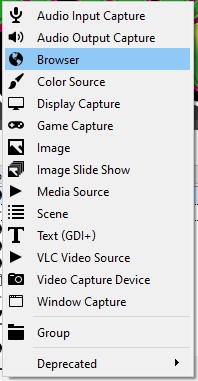
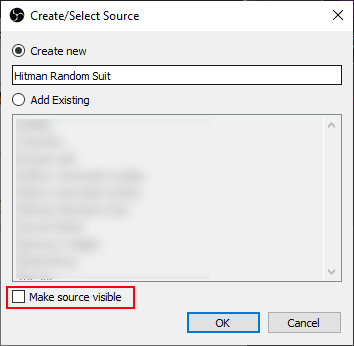
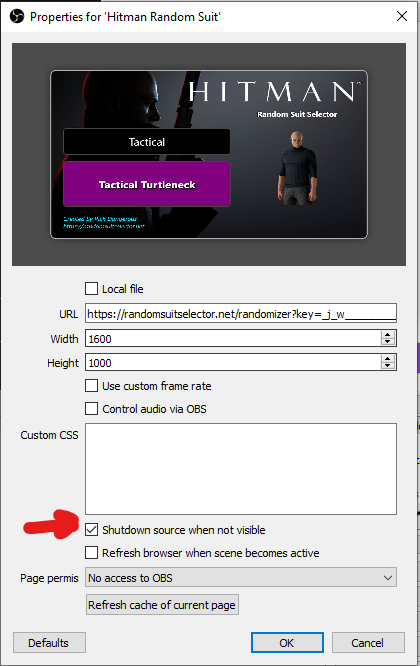
- Set the browser source to the url provided in the Suit selection page and
match the resolution.
- Add the following button to your stream deck (the OBS plugin is free on the stream deck market, but you
probably already have it):
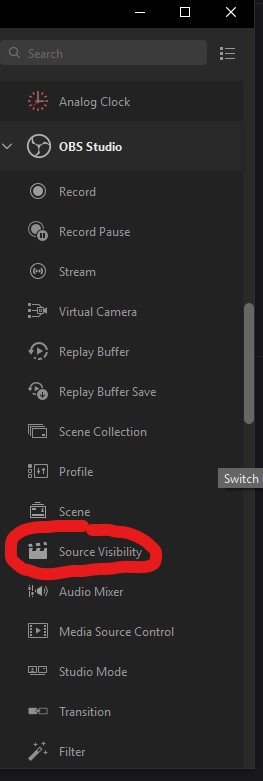
The title and icon can be whatever you want.
The important bit is selecting the source which is the one you created earlier. OBS has to be running for this so you can actually select it.
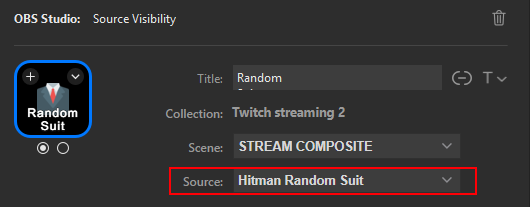
Now you should be able to show and hide the suit selector overlay using that newly created button.
By default the overlay should be hidden if you followed the above steps.